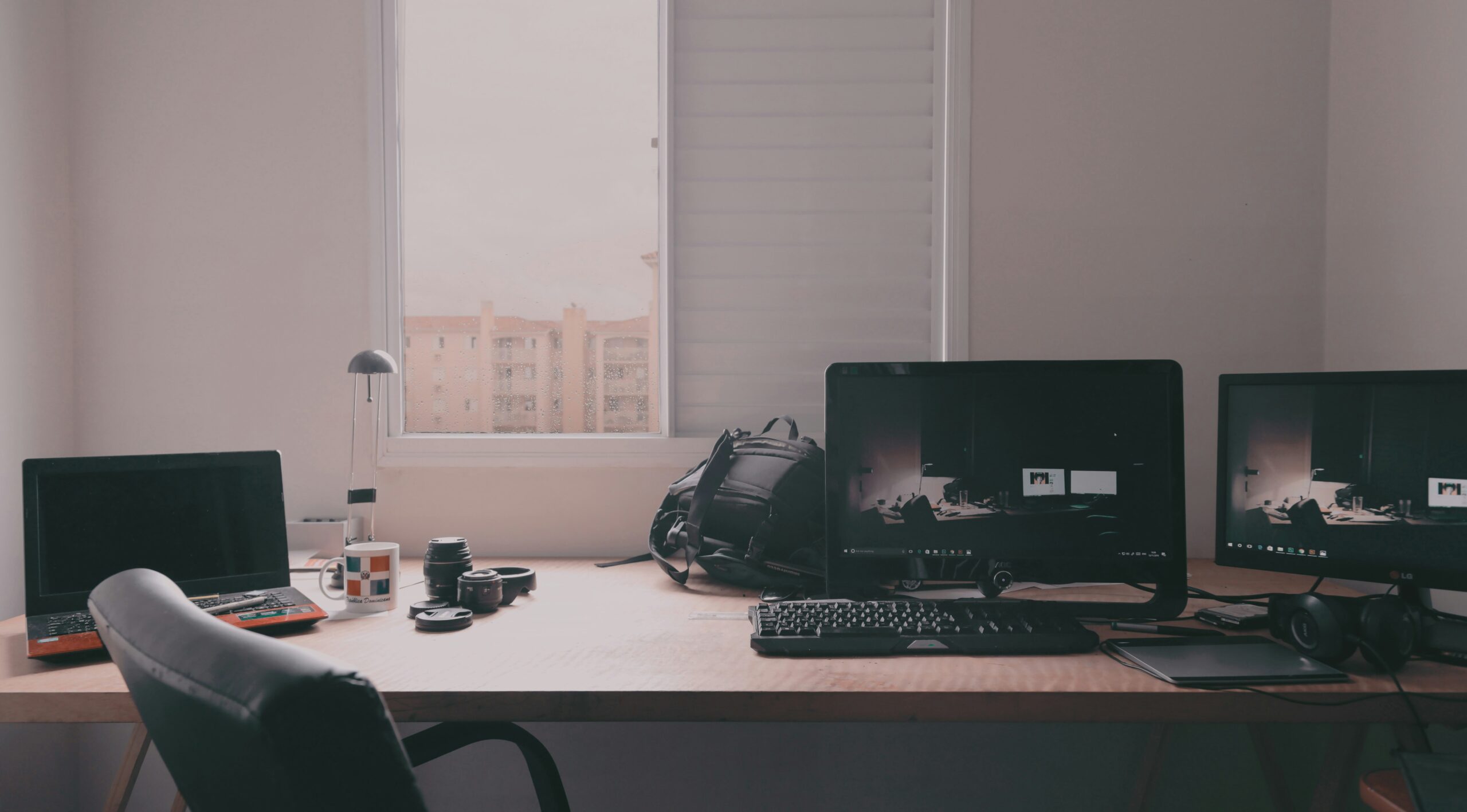
Desktop computers remain an important part of modern technology. Although laptops, tablets, and smartphones have become increasingly popular, desktop computers continue to offer advantages for home users, students, professionals, gamers, designers, developers, and businesses.
Understanding how desktop computers work can help you choose the right system, upgrade existing hardware, troubleshoot common problems, and get better performance from your computer.
What Is a Desktop Computer?
A desktop computer is a computer system designed to remain in a fixed location rather than being carried around like a laptop.
A typical desktop setup includes a computer case, monitor, keyboard, and mouse. Additional devices such as speakers, webcams, printers, external storage, and microphones can also be connected.
The computer case contains the primary hardware responsible for processing information, storing files, and running software.
Main Components of a Desktop Computer
Understanding the major components is the first step toward understanding desktop computers.
Central Processing Unit
The CPU, or central processing unit, is responsible for executing instructions and performing calculations.
CPU performance depends on factors such as architecture, clock speed, number of cores, and workload. Modern processors often have multiple cores, allowing them to handle multiple tasks simultaneously.
For everyday activities such as browsing and office work, a mainstream processor is usually sufficient. More demanding workloads such as video editing, software development, scientific computing, and 3D rendering may benefit from higher-performance CPUs.
Random Access Memory
RAM provides temporary, high-speed storage for data and programs currently being used by the computer.
Having more RAM allows a computer to handle more applications and larger workloads without relying as heavily on slower storage.
For example, someone who regularly works with large spreadsheets, creative applications, virtual machines, or numerous browser tabs may benefit from having more memory.
Storage
Storage is where the operating system, applications, documents, photos, videos, and other files are kept.
The two common types of internal storage are:
-
Solid-state drives (SSDs): Fast, quiet, and generally more responsive.
-
Hard disk drives (HDDs): Usually offer larger capacities at a lower cost per gigabyte.
Many modern desktop computers use an SSD as the primary drive, sometimes combined with a larger HDD for additional storage.
Graphics Processing Unit
The GPU, or graphics processing unit, handles graphics-related workloads.
Some computers use integrated graphics built into the processor, while others use a dedicated graphics card.
Dedicated GPUs are through the motherboard. It also provides expansion slots and ports for connecting additional components and particularly useful for gaming, 3D design, video production, machine learning, and other graphics-intensive applications.
Motherboard
The motherboard connects the computer’s major components.
The CPU, RAM, storage devices, graphics card, and other hardware communicate through the motherboard. It also provides expansion slots and ports for connecting additional components and peripherals.
When choosing a motherboard, compatibility with the CPU, RAM, storage, and other hardware is important.
Power Supply Unit
The power supply unit (PSU) converts electricity from a wall outlet into the appropriate power required by the computer’s components.
A reliable PSU with sufficient capacity is essential, particularly in systems with powerful CPUs or dedicated graphics cards.
Cooling System
Desktop components generate heat while operating. Cooling systems help keep temperatures within appropriate limits.
Depending on the computer, cooling may include fans, heatsinks, or liquid-cooling systems.
Good airflow through the computer case can help maintain stable performance and reduce heat-related problems.
Operating Systems
Hardware needs an operating system to provide a platform for running applications and managing computer resources.
Common desktop operating systems include Windows, macOS, and Linux.
The operating system manages hardware, files, applications, user accounts, networking, security, and many other functions.
Your choice may depend on the software you need, hardware compatibility, personal preferences, and professional requirements.
Desktop Computers vs. Laptops
Desktop computers and laptops can perform many of the same tasks, but each has different characteristics.
Desktops generally offer more flexibility for upgrades, larger cooling systems, and easier access to components. They can also provide strong performance for the price in many configurations.
Laptops, on the other hand, are designed for portability and typically include a built-in display, keyboard, touchpad, battery, and other components.
For someone who primarily works in one location and wants maximum flexibility for upgrades or high-performance hardware, a desktop can be attractive. For people who frequently travel or work in different locations, a laptop may be more convenient.
Types of Desktop Computers
Desktop computers are available in many forms.
Traditional Tower PCs
Tower systems provide space for multiple components, expansion cards, storage drives, and cooling systems.
They are popular among gamers, professionals, and users who want to upgrade their hardware over time.
All-in-One Computers
All-in-one computers combine the computer hardware with the monitor.
They take up less desk space and provide a clean appearance, although upgrading internal components can be more limited than with traditional desktop systems.
Mini PCs
Mini PCs are compact systems designed for users who don’t need a large computer case.
They can be useful for office work, media playback, basic computing, and specialized applications where space is limited.
Choosing the Right Desktop Computer
Before buying a desktop, consider what you actually plan to do with it.
For basic tasks such as web browsing, email, document editing, and video streaming, an entry-level or mid-range computer may be sufficient.
For gaming, video editing, programming, graphic design, engineering applications, or other demanding workloads, you may need a more powerful CPU, additional RAM, faster storage, and potentially a dedicated GPU.
Avoid paying for specifications you don’t need. At the same time, consider future requirements so that the computer doesn’t become outdated too quickly.
Upgrading a Desktop Computer
One major advantage of many desktop computers is upgradeability.
Depending on the system, you may be able to upgrade:
-
RAM
-
Storage
-
Graphics card
-
CPU
-
Cooling system
-
Power supply
-
Expansion cards
Upgrading individual components can extend the useful life of a computer and may be less expensive than replacing the entire system.
However, compatibility should always be checked before purchasing an upgrade.
Maintaining Your Desktop Computer
Regular maintenance can help keep a desktop computer reliable.
Keep the operating system and applications updated, use appropriate security software, maintain sufficient free storage space, and periodically clean dust from the computer’s ventilation areas.
Back up important files regularly. A hardware failure, malware infection, accidental deletion, or other incident can result in data loss.
Physical maintenance is also important. Ensure that air vents are not blocked and that the computer has adequate airflow.
Desktop Computer Security
Computer security should not be overlooked.
Use strong, unique passwords and enable multi-factor authentication where available. Keep your operating system and applications updated to address security vulnerabilities.
Be cautious with email attachments, unfamiliar downloads, suspicious websites, and unexpected links.
Regular backups are another important part of security because they can help you recover important data after hardware failure or a cyber incident.
Common Desktop Computer Problems
Desktop computers can experience a variety of problems.
A slow computer may be caused by insufficient RAM, limited storage space, background applications, outdated hardware, or software issues.
Overheating can result from dust buildup, poor airflow, or cooling-system problems.
Unexpected shutdowns may be related to power, overheating, hardware, or software.
When troubleshooting, start with simple possibilities before replacing expensive components. Check cables, restart the system, install relevant updates, review error messages, and identify when the problem first appeared.
The Future of Desktop Computers
Desktop computers continue to evolve alongside developments in artificial intelligence, high-performance computing, graphics, storage, and connectivity.
Modern desktops can support demanding workloads ranging from professional content creation and software development to advanced simulations and AI applications.
At the same time, compact desktop systems are becoming increasingly capable, providing substantial performance in smaller form factors.
Conclusion
Desktop computers remain versatile and powerful tools for work, education, entertainment, creativity, and professional applications.
Understanding components such as the CPU, RAM, storage, GPU, motherboard, and power supply makes it easier to choose, maintain, and upgrade a system.
Whether you need a computer for everyday tasks or demanding professional workloads, the best desktop is the one that matches your specific requirements, performance needs, budget, and plans for future upgrades.